
Setting up Quality of Service (QoS) on a Cisco Meraki router for Aircall is straightforward if you follow the recommended steps. You will first run bandwidth tests, then use those results to configure QoS for your router and Wi-Fi access points. We recommend launching these tests outside of business hours in order to obtain a proper evaluation of your bandwidth.
Important: If you already have traffic shaping or firewall rules set, please deactivate them before launching your tests.
Run bandwidth tests
Steps:
Go to Aircall Network Checker
Run 3 tests in a row.
Note the results and use the lowest result when setting up your QoS configuration.
Configure QoS on the Cisco Meraki router
Steps:
Go to your Cisco Meraki dashboard.
For a router, select Security appliance, then Traffic shaping.
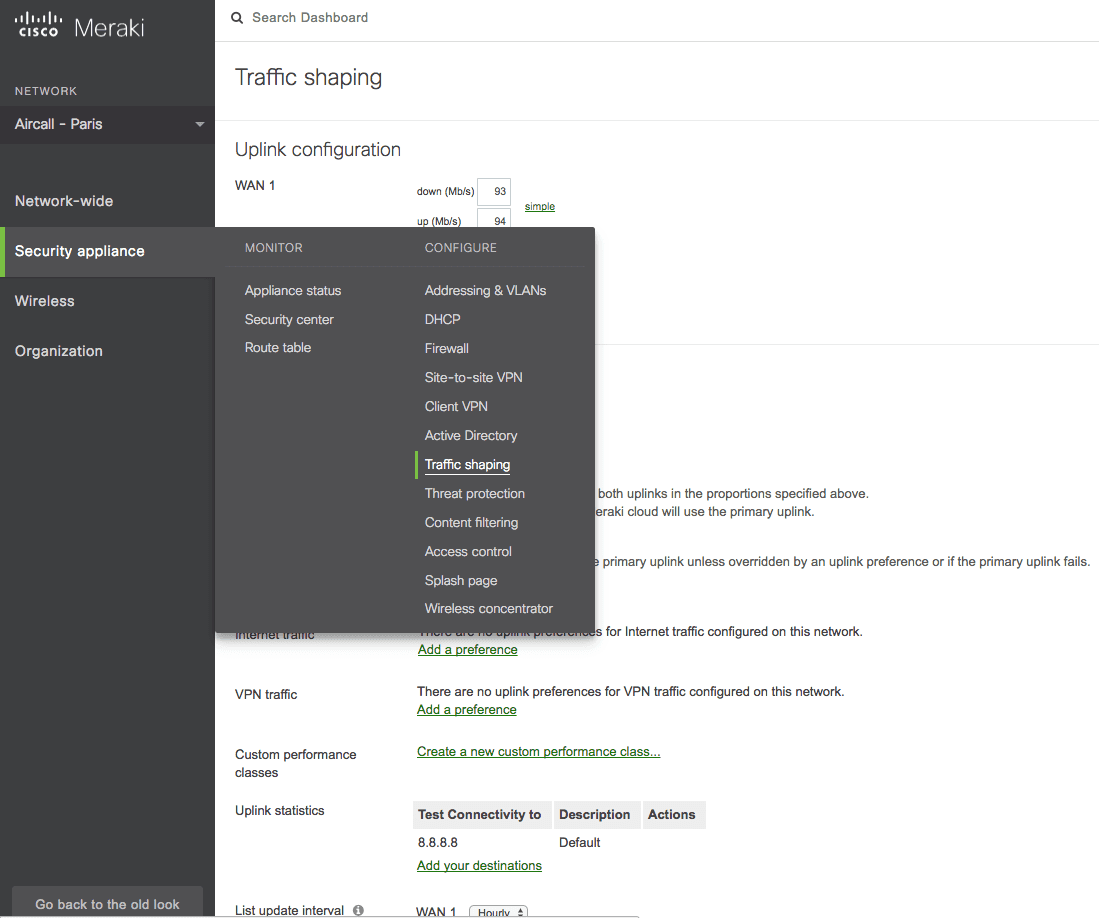
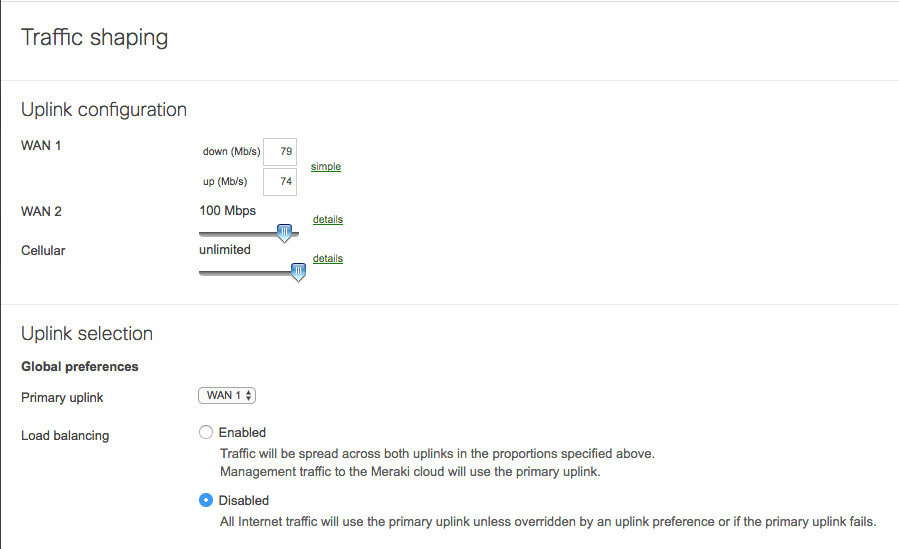
Click the Details link on the side of the uplink you use for Aircall (for example, WAN1).
Set the bandwidth according to the lowest result from your previous speed tests.
In Traffic shaping rules, add a new shaping rule.
You can find all IP addresses used by Aircall servers in Network configuration: setting up a QoS.
Click Save changes.
Configure QoS on a Wi-Fi access point
Steps:
In the Cisco Meraki dashboard, select Wireless, then Firewall & traffic shaping.
Add a new traffic shaping rule.
Click Save changes.
Once these steps are completed, your router is configured to prioritize your Aircall communication.
 Aircall Status
 Help logging in