
The IVR widget lets you create a menu of options that callers can navigate using their keypad. It helps route calls to the right person or team, such as Support or Sales, and ensures a smoother caller experience.
This article also explains how to manage voicemail notifications in IVR flows to prevent users from receiving unintended voicemail emails.
Setting up the IVR widget
Adding or removing options
Add or delete IVR options (branches) directly in the Smartflows canvas. Hover over the dots between existing branches and click the + icon to add a new one.
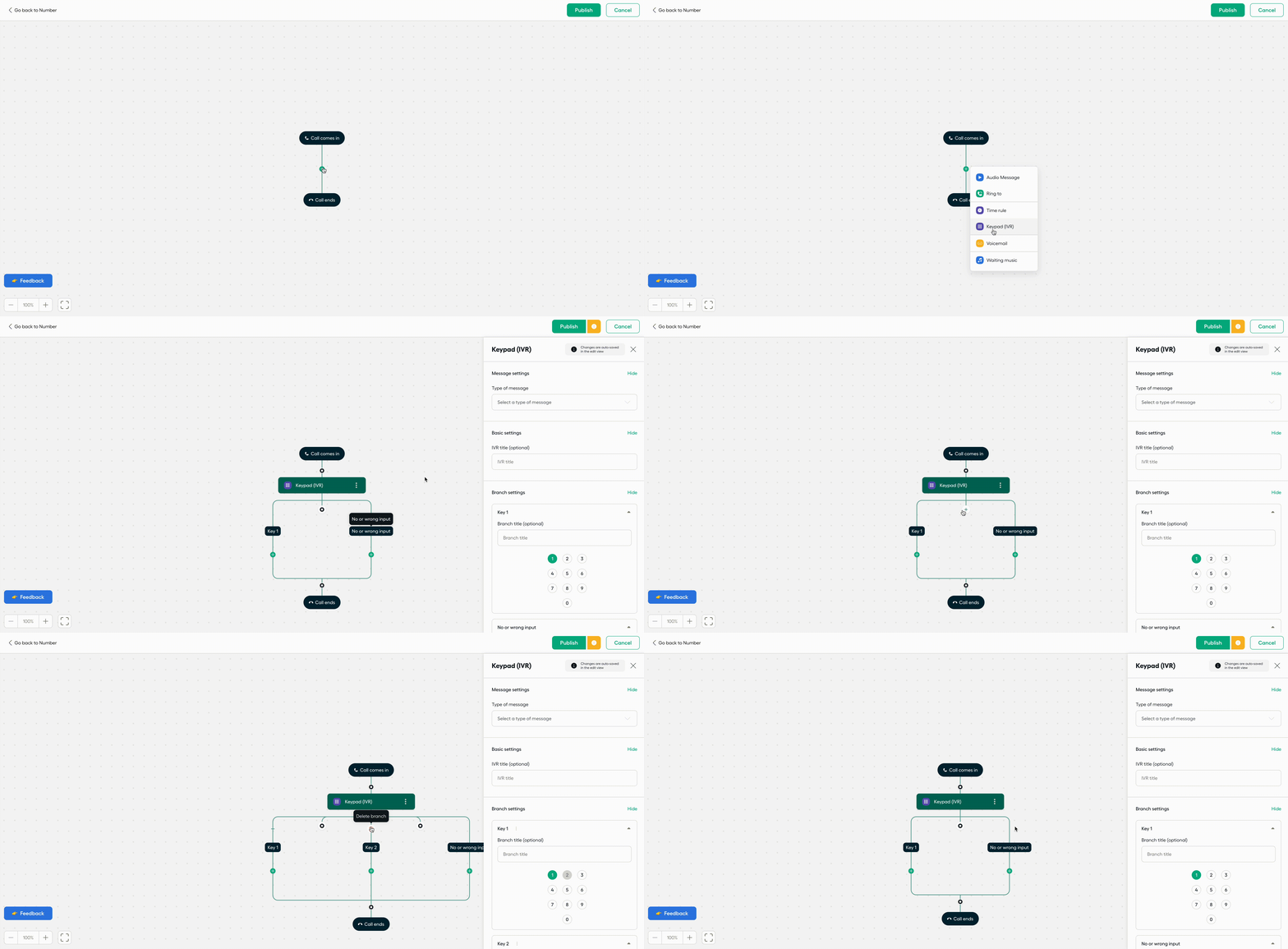
Common settings
Message setting: Choose the audio callers hear when they reach this step. You can upload a file, use text-to-speech, or record directly.
IVR title (optional): Add a name to help identify the widget in your flow.
Tip: A descriptive title makes it easier to recognize each widget’s purpose without opening it.
Branch-level configuration
Each IVR branch can be customized with its own title, keypad number, and routing logic.
Handling no input or invalid input
You can decide what happens if the caller:
Does not press a key (no input), or
Presses an invalid key (invalid input)
Options include repeating the message, setting how many times it repeats, or playing a custom message after repeated invalid inputs. After the IVR message plays, callers have 3 seconds to make a selection before the system considers it as no input.
Important: If an Audio or Voicemail widget is not connected to the *No Input* or *Wrong Input* leg, an error warning will appear.
This setup is required to avoid routing issues.
Adding a new branch
You can add a new branch to configure a separate flow path for different caller options. This helps manage more complex routing structures based on caller selections.
You can add a branch directly from the flow by clicking '+' or in the wirdget's side panel...
Routing and call management
To respect working hours, place the Ring to widget under the Time Rule section, not above Call ends.
You can also configure the IVR to redirect calls to different phone numbers depending on the caller’s selection. For example:
If call recording is required, route the call to a number where recording is enabled.
If recording is not needed, route the call to a number where recording is disabled.
This allows for flexible call management and ensures that callers are always routed according to your operational needs.
Voicemail notifications for IVR numbers
Understanding the issue
After updating/ editing a Smartflows number, users who opted to receive voicemail by email are receiving all the voicemails for the IVR and not just those for their assigned group or number. The new flow automatically adds the IVR number to their Associated numbers, and there is no way to remove the number.
This occurs because voicemail notifications are tied to the number, not to individual users. When the IVR number is shared, all associated users receive its voicemail emails.
How to fix voicemail routing
To ensure voicemails are sent only to the right users or teams:
Remove extra Voicemail widgets: delete any Voicemail widgets under individual users or teams. Instead, place one in the At any other time or No or wrong input branches.
Review voicemail routing: verify that voicemails are configured correctly in the After Hours and Unanswered Call sections.
Assign unique numbers to teams: if each team needs its own voicemail, assign a unique number to each and connect it to the relevant IVR leg.
Check team assignments: make sure teams and users are correctly assigned under the IVR’s distribution.
For full setup details, see: Configuring Numbers: Voicemail, Music, and Messages
Managing voicemail notifications
Voicemail email alerts are managed under user preferences. You can change them anytime in the Aircall Desktop or Web app under Settings → Preferences → Notifications.
 Aircall Status
 Help logging in